
Starlink Router Configuration Guide
Learn how to easily set up and configure your Starlink WiFi router using the Starlink app.

- Author
- Published
- Community
- 64 comments
Starlink is high tech satellite internet, but I was surprised at how easy it is to manage the system through their handy smartphone app. If you're new to Starlink, or just looking for how to get to all the router settings, I made this guide to walk you through the configuration. You'll learn how to access the router interface page, what each setting does, and how to set up a basic Wifi network. I will also give you some tips and tricks for getting the most out of your Starlink router.
Before we jump in, just keep in mind that there are multiple types of Starlink routers. This guide applies to all of them, but there may be some minor differences with the router settings, depending on which version you have. I'm using the latest Gen 3 router for this guide.
Accessing the Starlink Router Settings
If you haven't already done so, download the Starlink app on your smartphone or tablet. You need to use the Starlink app to access the router settings. There is no separate web interface or administration page for the router. The Starlink app can be installed on any Android or iOS device.
Connect to your Starlink Wifi network. If you just set up your kit, it will show up as STARLINK. Otherwise, log in to your existing Starlink Wifi network using the password you configured. If you forgot the password, or there is no network showing up, follow the steps in my Starlink factory reset tutorial.
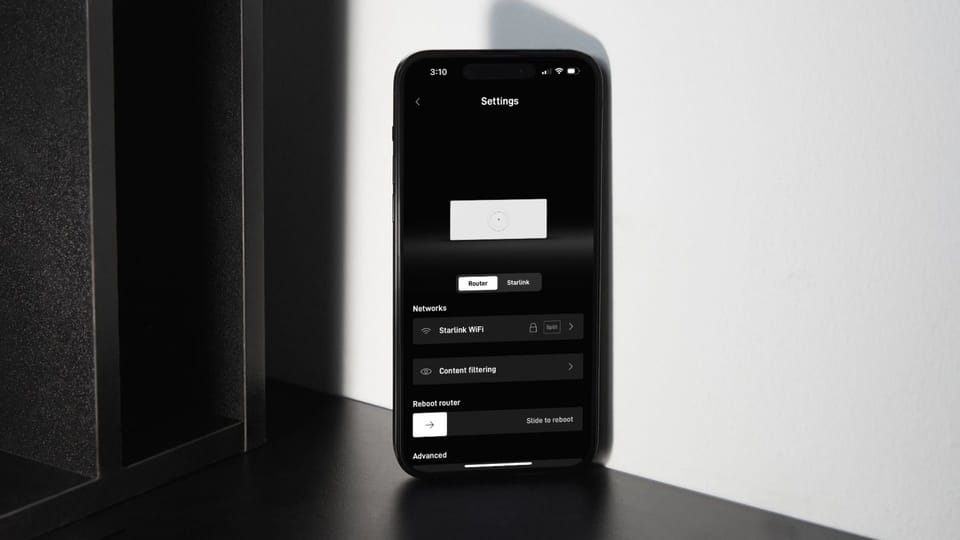
Open up the app and tap on Settings. This is where you can find all the configuration options for the router and Wifi network.
How to Configure Your Starlink Router
Starlink routers are extremely simple, providing secure Wifi for your home without many of the complicated options found on other routers. You don't need to work in IT to set it up. Let's go over each setting so you can properly configure the router for your needs.
Wifi Network Settings
You'll see your Starlink Wifi network name listed under the Networks section. By default, the network name is STARLINK. You should change it and add a password. To do that, tap on the network name to expand the settings.
- Network name - Type in a new Wifi network name (SSID). This is what shows up on your devices when you try to connect to the Starlink Wifi.
- Password - Add a strong, unique password to secure your Wifi network.
- Split 2.4 / 5 Ghz networks - By default, the Starlink router connects to each device with 2.4 Ghz or 5 Ghz automatically. Toggle this on to split your Wifi into 2.4 Ghz and 5 Ghz networks. This option can be helpful if you have older devices that only work with 2.4 Ghz Wifi.
- Hidden network - Turn this setting on to hide your SSID (Wifi network name) from appearing on nearby devices that are searching for Wifi. You will still be able to connect devices to your network by manually typing in the SSID and password. Turning this on does not disable Wifi.
Tap Save to save the network settings. If you changed your Wifi network name or password, you will need to reconnect your devices.
Content Filtering
Although Starlink router's do not have parental controls, you can filter out malicious and adult content on your home network by turning on one of these options:
- Malware - Filters out known malicious content from websites.
- Malware and Adult Content - Adds adult content filtering in addition to malware.
Content filtering is not done at the router level, but rather at the DNS level. By turning on either setting, the Starlink router uses Cloudflare's 1.1.1.1 DNS service, which filters out known malware and adult content on your entire network automatically.
Reboot Router
You can reboot your Starlink router through the app, locally or remotely. Just slide the toggle to the right to initiate a reboot. It will take a few minutes for your router to boot back up.
Custom DNS
By default, the Starlink router uses Google public DNS (8.8.8.8/8.8.4.4), but you can use custom DNS if you want to. This setting is helpful if you are having trouble connecting to certain websites or applications.
A popular alternative to Google DNS is Cloudflare. To use Cloudflare DNS, use 1.1.1.1 as the primary, and 8.8.8.8 (Google DNS) as the backup.
Note: If you have content filtering enabled, your DNS is automatically changed to Cloudflare. There is no need to configure custom DNS.
Bypass Mode
Bypass mode is useful when you want to use your own 3rd party router with Starlink. Turning on bypass mode completely disables the Starlink Wifi router. It will no longer broadcast a Wifi signal or assign IP addresses to devices on your network.
To learn more, check out my guide on how to bypass the Starlink router.
Note: To turn off bypass mode you will need to perform a factory reset.
Factory Reset
You can restore your Starlink router to its default settings by doing a factory reset. A factory reset erases your Wifi network name, password, and any other settings you configured. A factory reset is also useful for turning off bypass mode, or if you forget your Wifi password.
Starlink Router Lacks Advanced Options
The router that comes in your Starlink kit is designed to provide basic networking features. It doesn't have any advanced configuration options beyond what I've covered so far in this guide. If you need any of the following, be prepared to purchase a 3rd party router:
- Port forwarding
- Parental controls
- Guest networks
- MAC filtering
- DHCP/IP range settings
If you need any of those features, consider using another router with Starlink. For recommendations, check out my Best Routers for Starlink article.
Frequently Asked Questions
Starlink doesn't have a router web interface. All dish and router settings need to be configured through the Starlink app.
No, the Starlink router doesn't support port forwarding. Using a 3rd party router would enable port forwarding, depending on your service plan, and whether you are using IPV4 or IPV6. Check out my guide on Port Forwarding with Starlink to learn more.
Starlink routers have the ability to pause internet access for specific devices using the app, but they can't be permanently blocked. The best way to kick devices off the Starlink Wifi network is to change the Wifi password.

Discussion
64 Comments