
How To Use Starlink Sleep Mode
Starlink's sleep mode allows you to conserve power and data when you won't be using the internet. Learn all about Sleep Schedule and its uses.

- Author
- Published
- Community
- 23 comments
Starlink's sleep mode conserves power and data by scheduling times where the dish will stop communicating with satellites. The dish also stops melting snow and ice while sleeping. Ethernet and Wifi connections remain active, so you can wake Starlink up at any time.
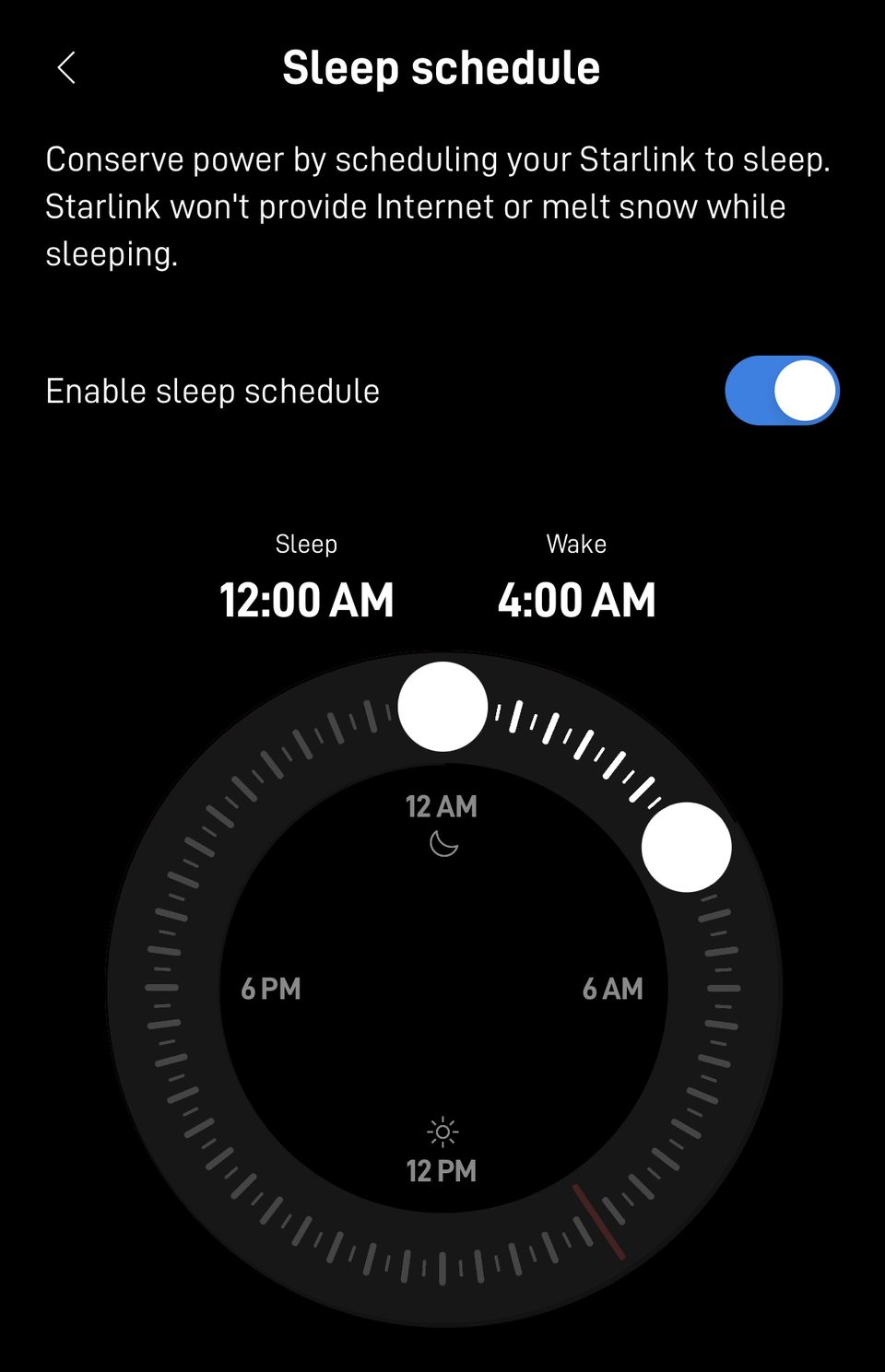
Sleep mode is configured through the Starlink app. You'll find it under Settings > Starlink > Sleep Schedule. You must be locally connected to your Starlink Wifi network to change sleep settings. You can turn on sleep schedule, and then schedule time each day where the dish will go to sleep. Advanced scheduling is not available. For example, you can't specify which days of the week sleep mode will be active, or create multiple blocks of sleep time during the same day.
What is sleep mode for?
Sleep mode is aimed at off-grid, RV, and van life users who rely on batteries and solar power for electricity. In these types of applications, customers appreciate any possible power savings. By turning on Sleep Schedule, you can reduce the power consumption of your Starlink system to the bare minimum needed to maintain communication between the dish and satellites.
Even those of us connected to the grid can benefit from sleep mode. The energy savings might not be as important to home users, but sleep mode also stops background apps and devices from using unnecessary data when we aren't even using them. Sleep mode can also be used to restrict internet access during certain hours, since there is no connection when Starlink is sleeping.
How much power does it save?
I put Starlink's sleep mode to the test, to see how much power it actually saves. For my test, I used a Gen 3 Standard dish. I measured power consumption in watts, directly from the AC power plug.
Normal operation: 64 watts
Sleep mode: 25 watts
Sleep mode reduced my Starlink's power consumption by 60%! That's a significant amount of power if you have an off-grid application.
Why not just turn the dish off instead?
If you want to save power, it might be best to just unplug your Starlink to turn it off completely. But sleep mode has some advantages over just turning the dish off.
First, the boot up time from off can take up to 15 minutes. That's because the dish has to go through the entire booting process, from finding satellites, to determining its GPS location. In sleep mode, those processes are not interrupted, so the boot up time is much faster.
Second, sleep mode keeps your home Wifi network running. If you turn off the dish completely, all your devices will disconnect from Starlink's Wifi network. Although most devices can automatically reconnect once you turn Starlink back on, some won't, and you'll have to manually reconnect them. With sleep mode, the Wifi stays on, and devices won't disconnect. This also allows you to continue routing traffic over your local network. For example, if you have network storage, you can continue to move files from one PC to another over your Wifi network.
When to avoid using sleep mode
When the dish enters a sleep state, it won't produce enough heat on the surface of the antenna to melt snow and ice. It's not a good idea to schedule sleep mode when you expect extreme cold, snow, or ice. According to Starlink, it could take several hours to melt snow/ice if it accumulates on the dish while in sleep mode.
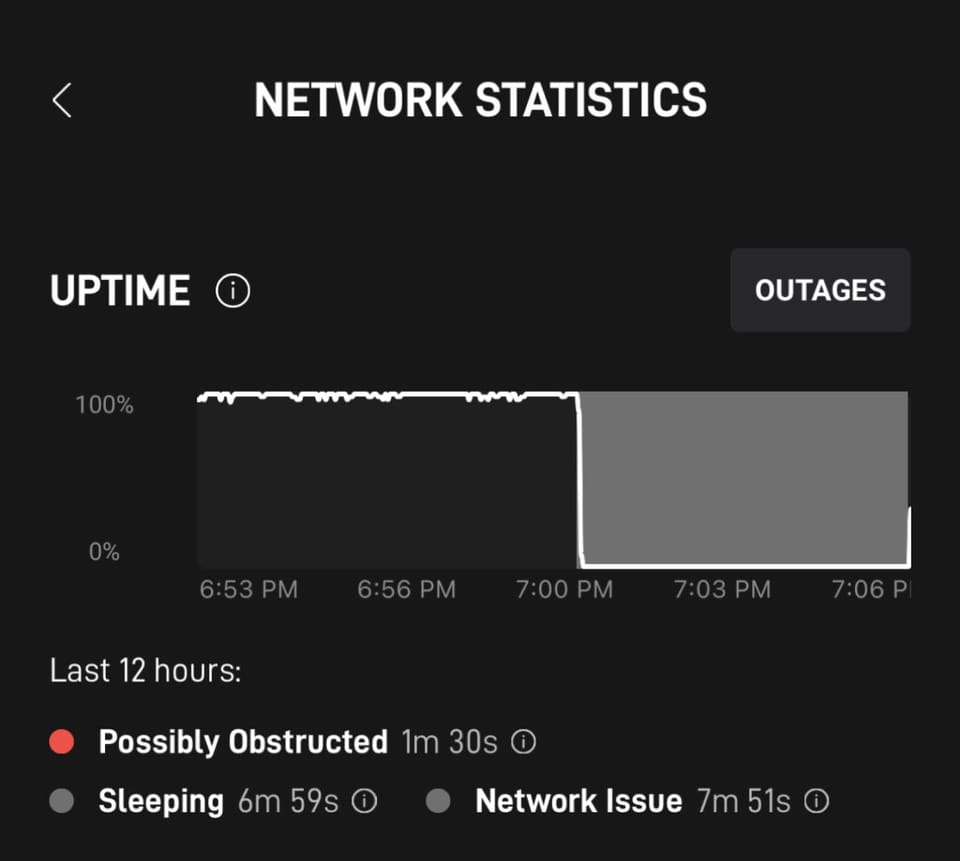
If you have services that require a constant internet connection, such as security cameras or Wifi calling, don't use sleep mode. Remember, sleep mode halts most communication with the Starlink satellites, so you won't have internet access. If you need to maintain an internet connection for remote access to cameras or Wifi calling, it's better to leave the Starlink in normal mode.
Another thing to keep in mind - you can only turn sleep mode off if you are connected to your home Wifi network. If you are away from home, you won't be able to manually turn off sleep mode. You'll have to wait until the scheduled wake up time.
Will the dish software still update?
Yes, firmware updates will continue to take place during the normal overnight hours, determined by Starlink. When an update is available, the dish will wake itself up, update, and then go back to sleep. Software updates typically happen between 2:00AM and 4:00AM.
Can I wake the dish up while it's sleeping?
If your Starlink is sleeping and you need to access the internet before its scheduled wake up time, simply go to the Sleep Schedule screen in the app, and toggle the enable sleep schedule option. It could take several minutes to reconnect.

Discussion
23 Comments