
Starlink 101: Essential Tips Every New User Should Know
New to Starlink? Follow these quick setup and performance tips to maximize speed, coverage, and reliability.

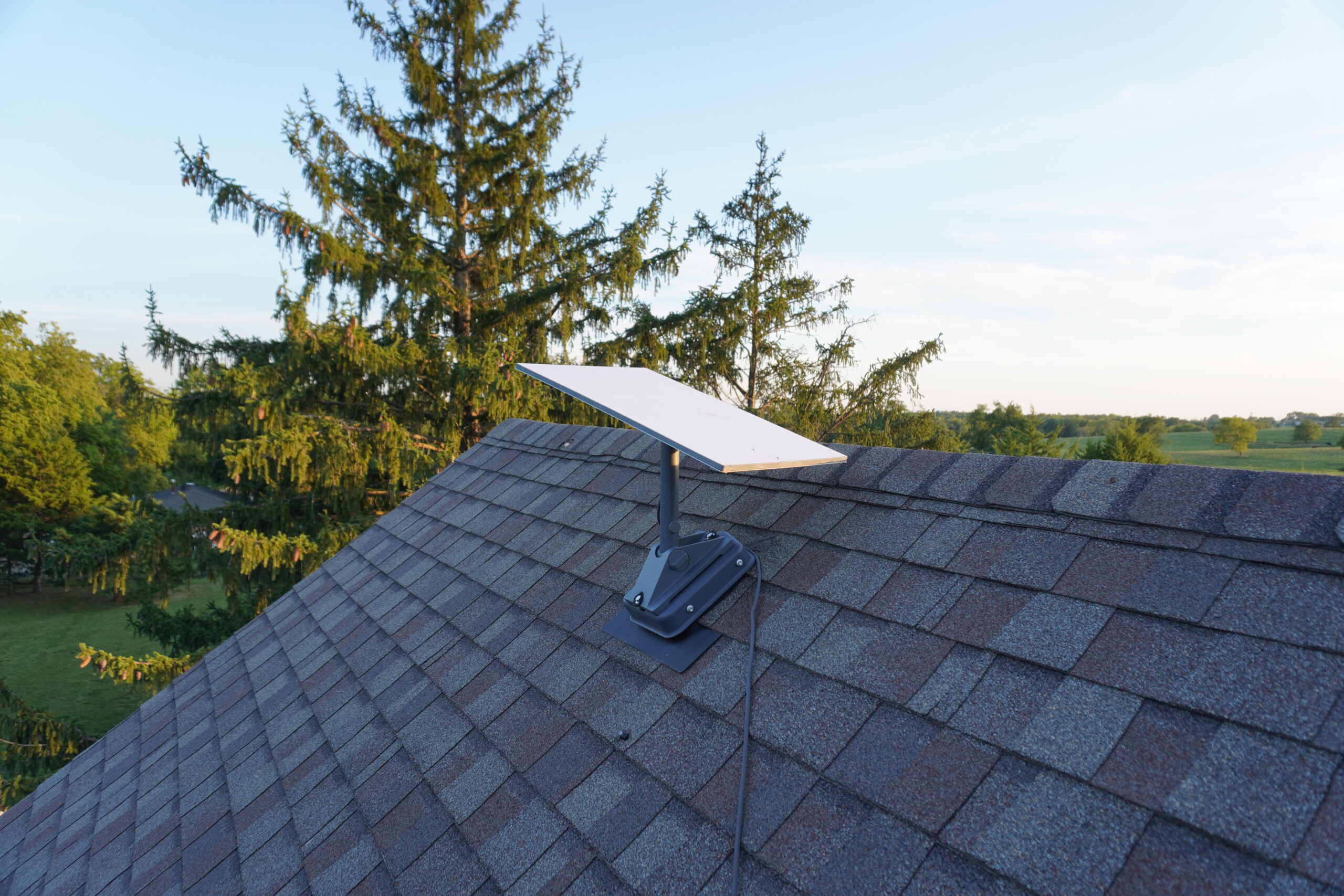
I’ve been a Starlink customer for nearly 5 years, writing about it on this blog for most of that time. Along the way, I’ve picked up several tips and tricks that I wish I knew from the start.
If you’re new to Starlink, following these tips and tricks will help you maximize the performance and reliability of your internet connection.
Find a Good Mounting Location
Your Starlink dish needs a completely clear view of the sky to get the best performance and reliability. Trees, buildings, and other obstructions can cause interruptions if they block any of your Starlink’s 110 degree field of view.

Download the Starlink app and use the obstruction scanner to find a good mounting location. Stand in the area where you want to install the dish. The scanner uses your smartphone camera to check for trees and other obstructions that might block satellite signals.
I recommend installing Starlink at the peak of your roof, even if you don’t have any obstructions at lower areas. Installing it at the highest point of the roof ensures you will be obstruction-free for years, as trees continue to get taller.
Starlink sells several types of roof mounts, so it’s easy to find an option that works for your situation. For mounting ideas, check out my Starlink Roof Mount Guide.
Plan How You Want to Run the Cable
Every Starlink kit comes with a dish that is mounted outside and a router/power supply that is placed inside. A single cable connects them together, providing power and data.
After you pick a suitable location for your dish, think about how you want to run the cable inside to the router. If you’re installing Starlink on your roof, I recommend running the cable down a wall, then through a small hole to the inside of your home. Starlink sells a cable routing kit that makes it pretty easy. Read my cable routing tutorial to learn more.

Starlink provides a 50 ft (15m) cable in every kit, but you might need more than that, depending on where you install your dish and router. Measure the distance that your cable needs to cover to get from the dish to the router. You can buy a longer 150 ft (45m) cable from Starlink. Alternatively, you can add lengths of aftermarket Ethernet cable to the cable included in your kit.
If you’ll be burying the cable, I recommend running it through conduit, as the included Starlink cable is not rated for direct burial.
Align Your Dish for the Best Performance
Your Starlink dish has a wide field of view and can electronically track satellites that move across the sky. It doesn’t need to be aimed at a specific stationary target like some other satellite systems, but it’s still important to align your dish for the best performance.
Based on your location, Starlink will want you to rotate your dish to a certain area of the sky, where satellite availability is highest. Properly aligning your dish will result in better performance and reliability.

To check your Starlink’s alignment, open the app and find the alignment tool. It shows you whether your Starlink is properly aligned, and which direction to tilt and rotate it if it’s off by a significant amount. Alignment is a one-time process during the initial installation, but it’s a good idea to periodically check it using the app.
Alignment is based on your location on Earth, not trees and buildings surrounding your dish. If you’re wondering why Starlink wants you to point your dish in the direction of nearby trees, it’s because that’s the area of the sky where the most satellites are.
Turn On Bypass Mode When Using a Different Router
Starlink kits come with a decent WiFi router, but it’s common for people to upgrade to a 3rd party router or mesh WiFi system. If you won’t be using the included Starlink router, it’s important to turn on bypass mode.
Bypass mode is a setting that you can turn on in the Starlink app. It completely disables the Starlink router, turning off the WiFi radio, and leaving DHCP and other routing functions to your 3rd party hardware.

Connect your aftermarket router to one of the Ethernet LAN ports on the back of the Starlink router, then turn on bypass mode. This will prevent a situation known as double NAT, which occurs when two routers are active on the same network.
You’ll still be able to use the Starlink app in bypass mode. You will no longer see any router settings or statistics, but you’ll continue to see information about your Starlink dish. To turn off bypass mode, perform a factory reset of the router.
Plug Starlink Into a UPS
Starlink hardware is sensitive to power outages and surges. I see this all the time with emails and comments that I get on the blog. Someone has a bad storm and their power goes down. Later on, the power is restored, but their Starlink system never comes back up.
The best way to prevent power issues is to plug your Starlink router into an uninterruptible power supply (UPS). Devices plugged into the UPS receive a regulated voltage output that is shielded from grid surges and fluctuations. During an outage, the battery in a UPS provides backup power so your Starlink stays on, even when the power goes out.

To learn more about UPS’s and which ones I recommend for Starlink, read my article Should You Use a UPS with Starlink.
Split Your WiFi Network for Older Devices
Most modern WiFi routers, including the one in your Starlink kit, broadcast a single network for the 2.4 Ghz and 5 Ghz bands by default. Devices are free to choose between the two bands based on compatibility and signal strength.
Many older WiFi devices are not compatible with this kind of combined network, so they might not be able to connect to your Starlink WiFi network at all. There is a pretty easy solution, though. You can split the bands into different WiFi networks.

To split your Starlink WiFi into 2.4 Ghz and 5 Ghz networks, go into the network settings in the Starlink app. Turn on the toggle to split the networks. A second network name will appear for the 2.4 Ghz network, but both will use the same password.
I recommend connecting older and lower bandwidth devices to the 2.4 Ghz network. It’s also good for devices that are farther away from the router, as 2.4 Ghz tends to be more stable at longer distances. I connect all my security cameras and smart home devices to the 2.4 Ghz network.
Monitor Your Connection With the Starlink App
The Starlink app is your command center. It contains all of the information and settings you need to manage your Starlink internet connection. Becoming familiar with the monitoring data can help you diagnose and troubleshoot issues.

I recommend turning on a hidden setting that will give you critical information right on the main page of the app. At the bottom of the app, tap Advanced. Turn on the “Show statistics widget” setting. Go back to the main screen. You should see two new widgets with great information about your connection.
Ping success measures your connection to the internet multiple times per minute. This is essentially your reliability and uptime. 100% means your connection is perfect. My connection is usually sitting at 99.9%, and anything within a few tenths of 100% is good. If you have interruptions, due to obstructions for example, your ping success will be lower, indicating an issue that is impacting the reliability of your connection.
Latency measures how long it takes in milliseconds (ms) for a request to go out to the internet and come back to your Starlink. Lower is better. Latency is important for internet activities like online gaming and video conferencing. 20-30 ms is typical for Starlink.
Check the Obstructions page a few days after you install Starlink. If you’ve followed the tips in this guide, you shouldn’t have any issues with trees or buildings. But in some cases, obstructions can’t be avoided. The Obstructions page will show you what parts of your Starlink’s field of view are blocked.
Know How to Get Support
My last tip: Know all the resources to get help if you ever have an issue with your Starlink service.
I highly recommend researching issues using the Starlink Help Center. You can access the Help Center on the Starlink website or by tapping Support in the Starlink app. It contains a wealth of Starlink knowledge, everything from billing questions to troubleshooting guides.

If you can’t find your answer in the Help Center, create a ticket. Starlink support is delivered through an online ticket system that you can access through the website or app.
Some countries have emergency phone support. For example, in the US and Canada, Starlink operates a phone support line during business hours for customers who are offline. You can find the phone number for your country by navigating to the end of any of the “Offline” Help Center articles.

I used to get your updates by email on starlink q& a but not anymore ,are you scaling back your input or have i been somehow knocked off your emails ? Thanks kevin lapage eagle,nebraska
Excellent article! and it has enabled me to resolve a problem I was having. My DNS on my WiFi Box server wasn’t working as expected. Now I know the reason was that I had 2 servers competing with each other. When I disconnected the Starlink Lan Cable from my WiFi box I could then connect to other websites using an alternative Internet Access Point.
But my question now is: I have disconnected the Lan Cable from the Starling to my WiFi Access Point, and mu problem has been resolved. But that means I can no longer use Starling (unless I turn on ByPass mode). But can I now connect my WiFi Access Point to the Starlink box using WiFi, without turning on ByPass mode? Or will that still give me DNS conflicts?
The reason I ask this question is that I would still like to use the Starlink WiFi for some devices because it is a much faster bandwidth than my WiFi Access point. However my WiFi Access Point has several other ways to connect to the internet. For Example I have an Iridium Connection, a Cell Connection, and a Remote WiFi connection. So It is far easier for users to connect to my Single WiFi Access Point for all these connections. But for certain devices I would also like to connect direct to Starlink for that faster speed. (I am of course presuming that if I turn on Bypass Mode I cannot use the internal Starlink WiFi).
A rather complicated set-up, but would really appreciate your view.
Once again, I congratulate you for a very comprehensive article which did resolve a problem I was encountering.
Best Regards
Steve
You can set up your access point in bridge/access point mode instead of router mode without putting the Starlink router in bypass mode (Ethernet connected). That would allow devices to connect to the AP but also the Starlink router continues to have a WiFi network.
So…I am travelling on an RV and don’t always have spots for open sky. The star link app tells me to aim it directly at a bunch of trees that block its view of the sky. It works but complains about obstructions. I can turn it 90 degrees to aim it at the only patch of open sky and it seems to work just as well.
It tells me about the obstructions (almost none) and seems to work fine. Am I missing something?
I never worry about aiming the dish when camping. Like you mentioned, just aim it at the most open sky you can. Camping is a bit different since you’re always mobile, and typically trying to have trees around. So you have to do what you can to maximize open sky, even it it means ignoring the Starlink alignment instructions.