
Starlink Troubleshooting Guide
This expert written guide explains the most common Starlink problems, and offers tips on how to diagnose and fix them.

- Author
- Published
- Community
- 87 comments
I've been a Starlink customer and blogger for several years. I've seen firsthand the most common Starlink problems, and I've learned how to fix them. I wrote this troubleshooting guide based on my knowledge and experience. If your Starlink internet is down, try the tips in this guide so you can get back online as soon as possible.
Using this guide is simple. I've listed the common Starlink issues at the top, but you can also check the table of contents for your problem. In each section I explain what causes the error message and I provide tips on how to fix it.
Disconnected - Starlink Unreachable
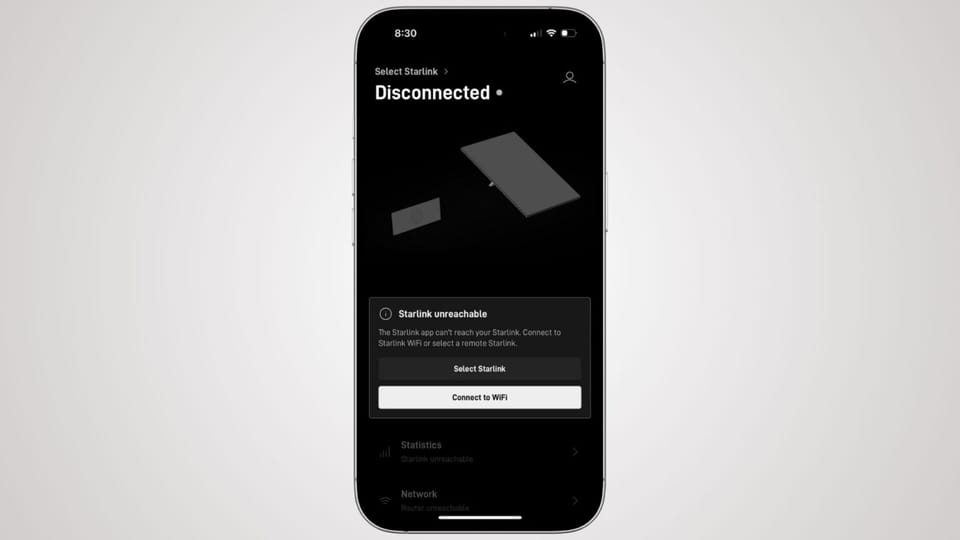
The most common problem I hear about from my readers is the Disconnected error message in the Starlink app. The Disconnected status occurs when the Starlink app on your phone can't communicate with your router.
Common Causes
If your phone can't connect to the Starlink router, it usually means there is an issue with the router itself. However, the Disconnected message doesn't always mean something is broken. For example, if you forget to connect to your Starlink's Wifi network and don't have any other internet access, like cell phone service, the app will show Disconnected even though technically nothing is wrong.
The Disconnected error can also be caused by signing out of your Starlink account, or by selecting the wrong Starlink if you have multiple. This is especially common for people trying to check their Starlink's status through the app while they are away from home.
How to Fix the Disconnected Error
First, make sure you are signed in to the right Starlink account. Tap the profile icon in the upper right corner of the Starlink app to check. Once you are signed in, go back to the main screen.
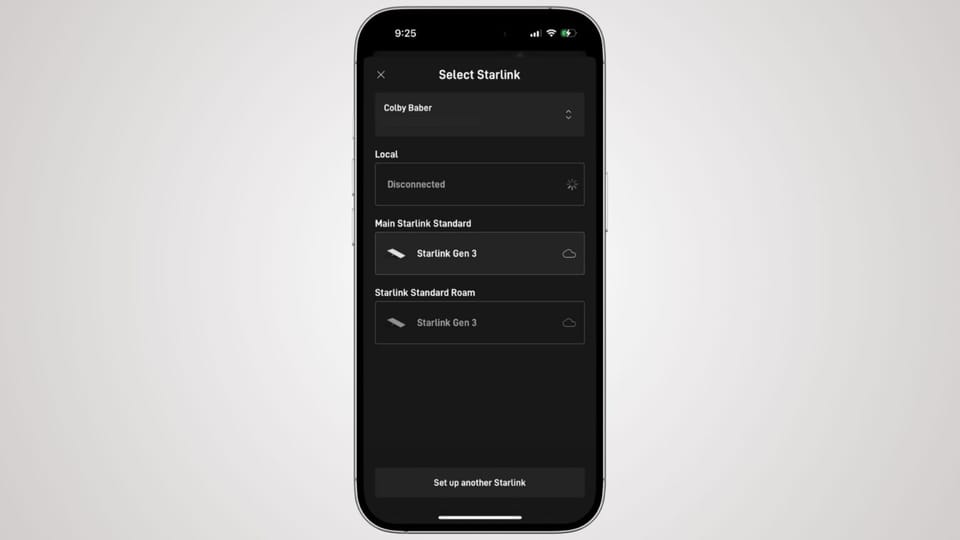
Next, tap "Select Starlink" and be sure you are connecting to the right Starlink. If you are at home with your Starlink, tap "Local". If you are away from home, trying to check on your Starlink remotely, tap the name of your Starlink with the cloud icon next to it.
Return to the main screen. If the Starlink app is still showing Disconnected, open the Wifi settings on your phone. Check that you are connected to your Starlink Wifi network. If you become disconnected from your Starlink's Wifi, it can cause the error. Connecting back to the Wifi network should solve the issue.
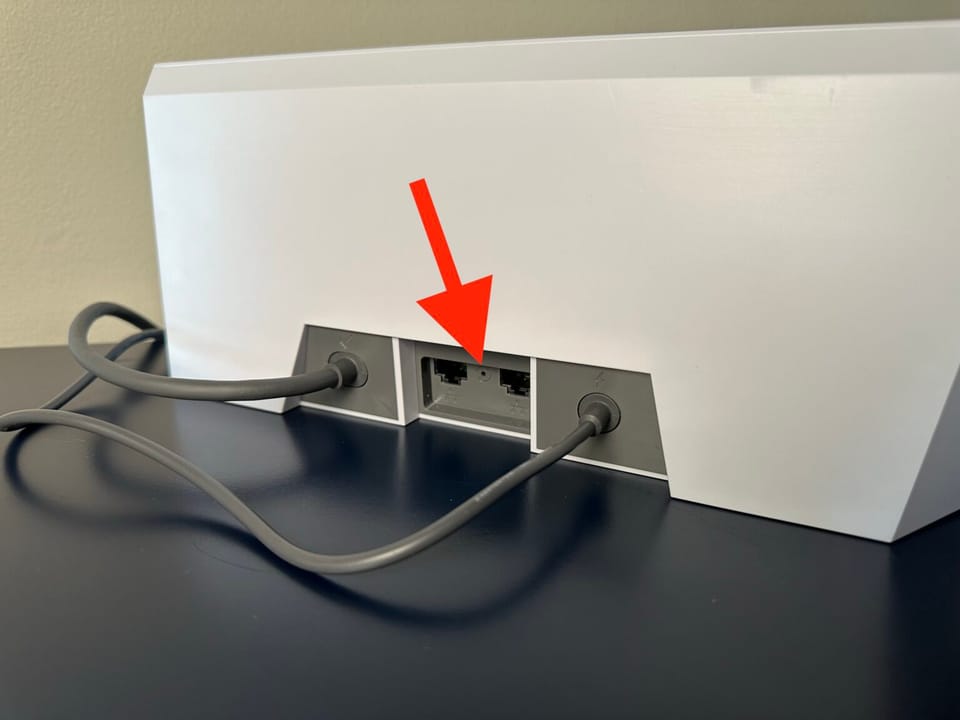
If you don't see your Starlink Wifi network, or you can't successfully connect to it, the next step is a router factory reset. Press the reset button on the back of the router. You should see a new network named "STARLINK" appear after a few minutes. Connect to it and head back to the Starlink app. If you need more help with this step, refer to my tutorial How to Factory Reset the Starlink Router.
Offline - Starlink Unplugged or Rebooting
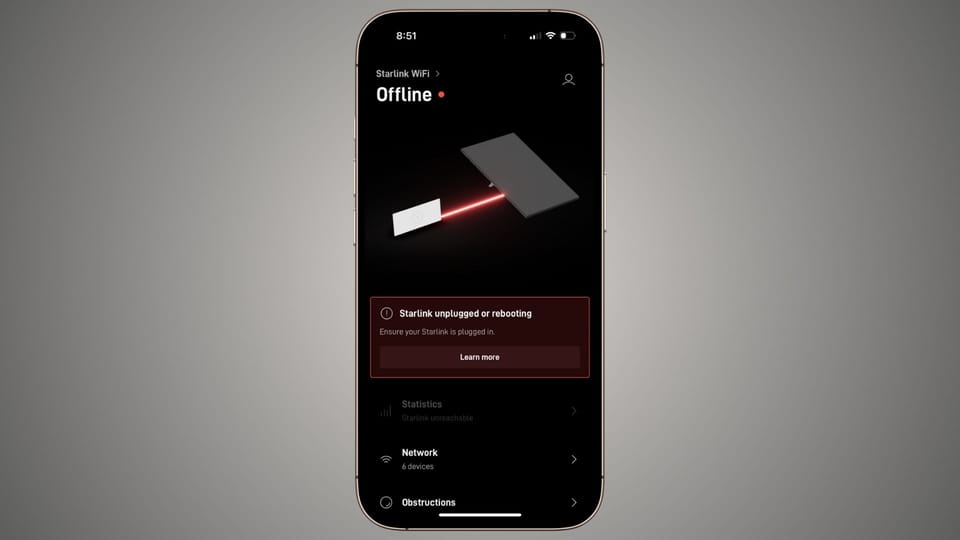
In my experience the second most common Starlink issue is the "Starlink unplugged or rebooting" error. When this message shows up it means there is a problem with the connection between the Starlink dish and router. You probably see "Starlink unreachable" under the Statistics button in the Starlink app.
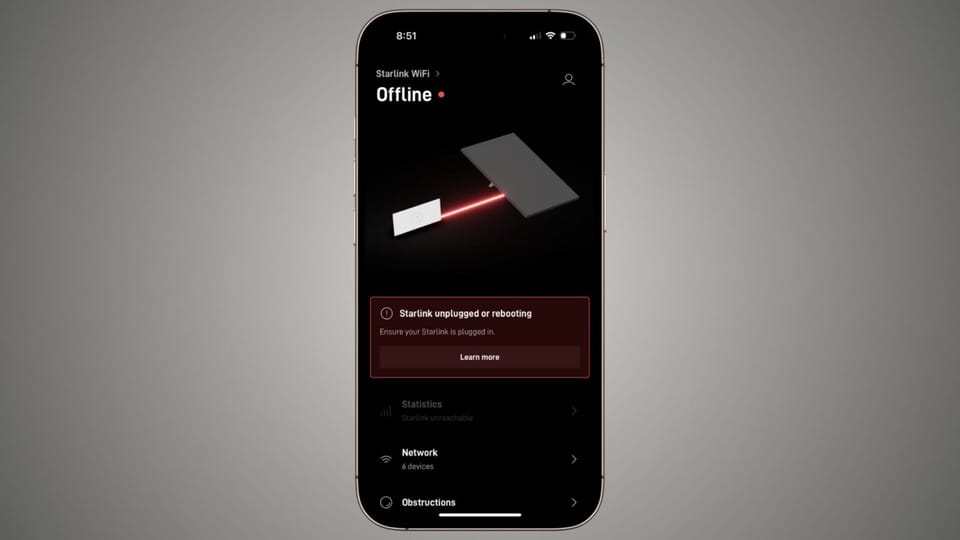
Potential Causes
The connection from the dish to the router can be interrupted in several ways. If your Starlink is in the process of rebooting, like from a software update or power outage, this alert message can pop up and it's completely normal.
A bad cable connection is another common cause. Damage or a loose connection on either end of the Starlink cable will create this error. A bad cable will interrupt the connection between the router and dish. In some cases the dish or the router is defective. When either one goes bad, it stops communication and generates the Starlink unplugged or rebooting error.
Try These Fixes
Reboot your Starlink - Reboot the system by unplugging the Starlink router power cord. Wait 60 seconds, and then plug it back in. Your Starlink will take several minutes to boot back up. Check the app after about 15 minutes to see if the error is fixed.
Inspect the Starlink cable - Take a close look at both ends of the Starlink cable. First, unplug the Starlink router power cord so that your system is powered down. Then, go to your Starlink dish. Take it out of the mount and disconnect the cable. Inspect the connector for damage or corrosion. If it looks good, reconnect it to the dish, making sure it's seated all the way in.
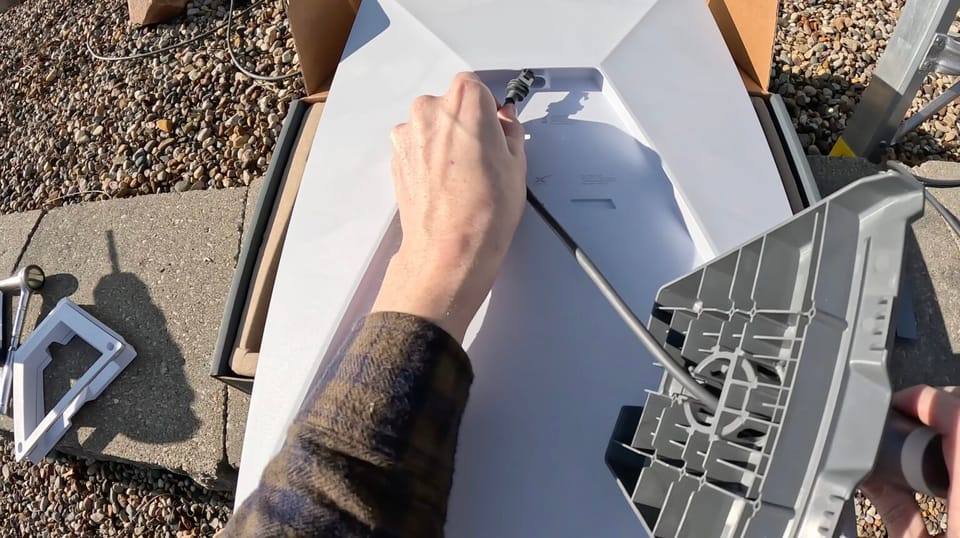
Now move to the Starlink router. Disconnect the Starlink cable from the router and inspect it for damage. If it looks good, reconnect the cable, making sure it is seated all the way in. Plug the Starlink router power cable back in. Let your Starlink system boot up for about 15 minutes, and then check the app to see if the error is fixed.
Factory reset the router - The last thing to try is to factory reset the Starlink router. To do this, hit the reset button on the back of the router. It's under the rubber cover near the center. If you have an older Starlink router without the reset button you will need to power cycle the router 6 times in a row. Refer to the tutorial linked above if you need additional help.
After doing the factory reset, wait about 5 minutes. Then open up the Wifi settings on your phone. Find and connect to the "STARLINK" network. Open the Starlink app to finish setting up the Wifi name and password. Once you reconnect to your new network, check for any error messages.
Offline - Booting, Searching, No Signal Received
If your Starlink dish goes bad or there are issues with the Starlink network, you might see one of three "Offline" messages: Booting, Searching, and No Signal Received. If your dish can't connect to the Starlink satellites it will cycle through these status messages until a connection is restored.
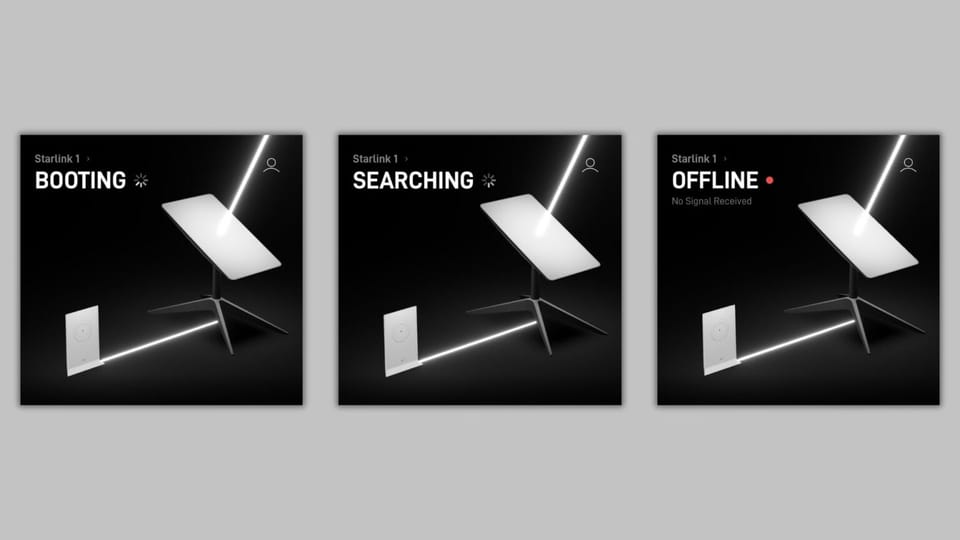
What Causes It
There are three things that cause this Offline error message cycle:
- A defective Starlink dish.
- Obstructions blocking the Starlink signal.
- Starlink network/internet issues.
If your Starlink dish goes bad it will stop communicating with the satellites. In many cases the dish completely dies and won't power up. You will probably see the "Starlink unplugged or rebooting" message in these cases. But in other cases the dish still powers up, it just can't successfully transmit data to the satellites. That's when you will see it continuously try to reboot and search for a signal.
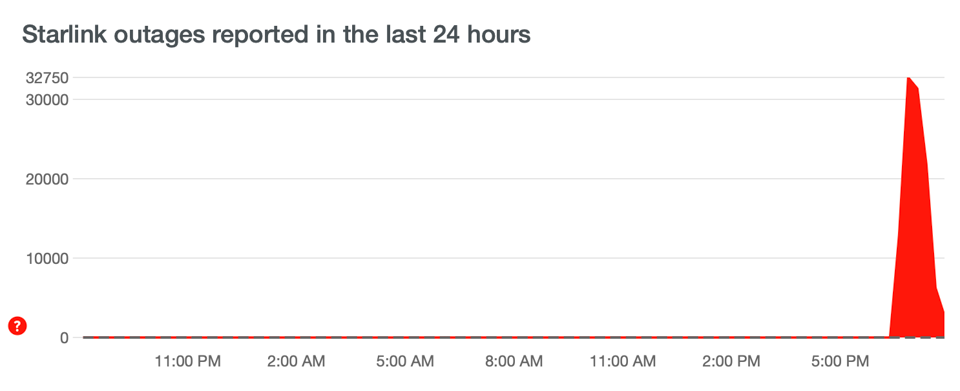
Starlink network issues can also cause these Offline errors. When Starlink's network goes down, customers in a certain region, or even worldwide, can experience the booting and searching cycle. I remember a handful of major worldwide outages in the years I've been a Starlink customer. When they happen, your dish won't connect to the satellites until the network issue is fixed.
Obstructions like trees can also cause these error messages. If obstructions are the cause, I would expect your errors to be more intermittent rather than continuous. You can check by tapping "Obstructions" from the Starlink app menu. The app will tell you whether your Starlink is obstructed and causing issues. Fixing them is not in the scope of this troubleshooting guide, but check out my article on Starlink Obstructions if you want to learn more.
How to Fix It
If you find yourself faced with the dreaded Offline cycle of error messages, try a simple reboot first. To reboot your Starlink unplug the router from the wall outlet. What about 60 seconds, then plug it back in. Your Starlink can take about 15 minutes to fully boot back up. Check the app after some time has passed to see if you are back online.
Like I mentioned before, Starlink network outages can cause the Offline error cycle. To rule out regional or worldwide Starlink outages, use your cellular connection to check websites like Downdetector. You can also check Starlink communities on social media apps like Reddit and Facebook. If there is a widespread outage reported, there is nothing else you need to do on your end but wait for Starlink to restore service.
If you don't see any outages reported for your area, try a Starlink router factory reset as a last resort. By pressing the reset button on the back of the Starlink router, you restore it back to factory settings. Sometimes this can fix the issue. You will need to set your Wifi name and password in the Starlink app.
Offline - No Active Account
If you are seeing the "No active account" message it means Starlink doesn't detect an active subscription associated with your dish. Each Starlink dish has to be associated with a Starlink account to work. The dish has an integrated internet modem, so it needs to be tied with a subscription to function properly.
Common Cause
Most of the time there is no active Starlink subscription associated with the dish. I've noticed this is especially common when people don't buy directly from Starlink and instead buy from resellers. With no active service your dish won't be able to connect to the internet.
Solutions
The first solution is to check to make sure you have an active subscription. Tap the profile icon in the Starlink app, and then hit "Manage subscription" near the bottom. Double check that you have an active service plan. Can't sign in or don't have a Starlink account? You will need to activate Starlink and create an account.
If you have an active subscription and are still getting the "No active account" message, try a system reboot. Unplug the Starlink router, wait 60 seconds, and then plug it back in. Give the system about 15 minutes to boot up, and then check the app again.
Offline - Unexpected Location
The "Unexpected location" message appears in the Starlink app when your dish is not located at the registered service address on the account. If you have a fixed address subscription, like Residential, you won't be able to use your dish outside of the service address.
Causes
This can happen for a couple of reasons. Are you trying to travel with your dish using the Residential service plan? Another possible cause is that your service address got changed by accident, or you moved but didn't update your address in your Starlink account.
Try These Fixes
Check your service address and service type - Your dish needs to be physically located at the service address if you have the Residential plan. To check your plan type and service address, open the Starlink app and tap on the profile icon in the upper right corner. At the bottom tap "Manage subscription". If needed, update your plan or service address.
Reboot your system - If you are at the correct address with active Starlink coverage, but you are still getting the location alert, try rebooting your Starlink system. You can reboot by unplugging the router, waiting 60 seconds, and plugging it back in. Let your Starlink boot up and check the app in about 15 minutes.
Other Starlink Error Messages
If you haven't seen your problem in the guide yet, take a look below and see if any of these match what your Starlink app is saying.
Router Unreachable
The "Router unreachable" message shows up when your Starlink dish can't communicate with the router. The dish might be connected to the satellites, but the app is having trouble talking to the Starlink router.
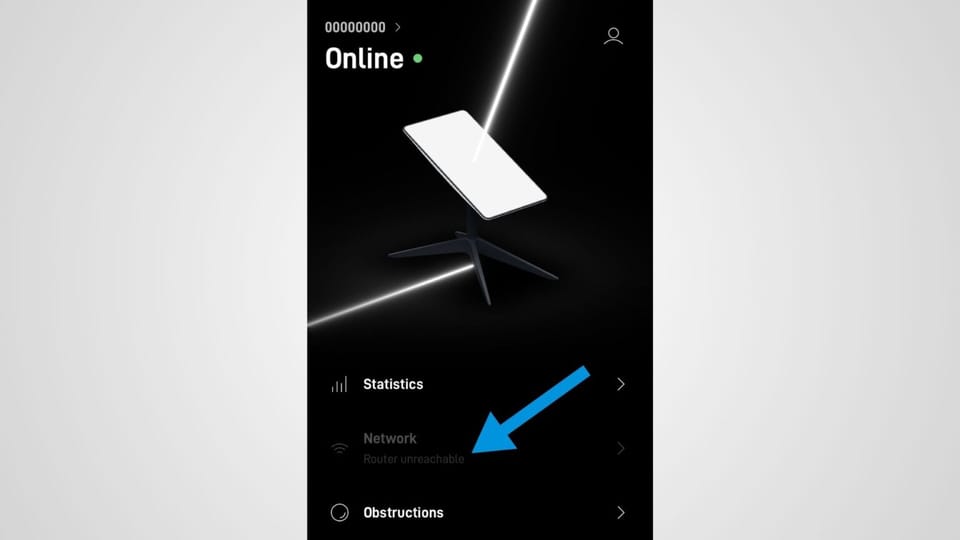
Most of the time a simple reboot will fix this issue. If that doesn't work, try a router factory reset. For more information on this specific error message, check out my tutorial on How to Fix the Router Unreachable Error.
Router Not On Account
If you see the message, "This router doesn't appear to be associated with your Starlink", double check that you are signed in to your Starlink account. Tap the profile icon in the upper right to sign in.
Rebooting your Starlink would be my next recommendation. Unplug the router power cord, wait 60 seconds, then plug it back in. Let your Starlink system boot up for about 15 minutes.
Contacting Starlink Customer Support
If you've tried my recommendations but still can't get your issue fixed, it's time to contact Starlink. The only way to get in touch with Starlink is to create a support ticket. You can create a ticket in the app or on the website. If you need additional help I have a tutorial on How to Contact Starlink Support.
Starlink has access to advanced diagnostics for your hardware and they can easily identify issues with your dish, cable, or router. If your Starlink is under warranty they will arrange for replacement hardware.

Discussion
87 Comments